OVERVIEW
Bringing the joy of interactive learning to a digital classroom
Lido Learning is an Indian e-learning platform offering interactive online classes in small groups of up to 12 students. Each class is led by a tutor who guides students through subject-specific material, revision, and collaborative learning. Lido set out to build a robust platform that would help tutors connect with students and support more effective learning.
- ROLE
- Visual DesignUI Design
- TIMELINE
- 1 month
- TEAM
- 4 Developers,1 Design Manager,1 Product Designer,2 Visual Designers
- DELIVERABLES
- Visual and UI Design System
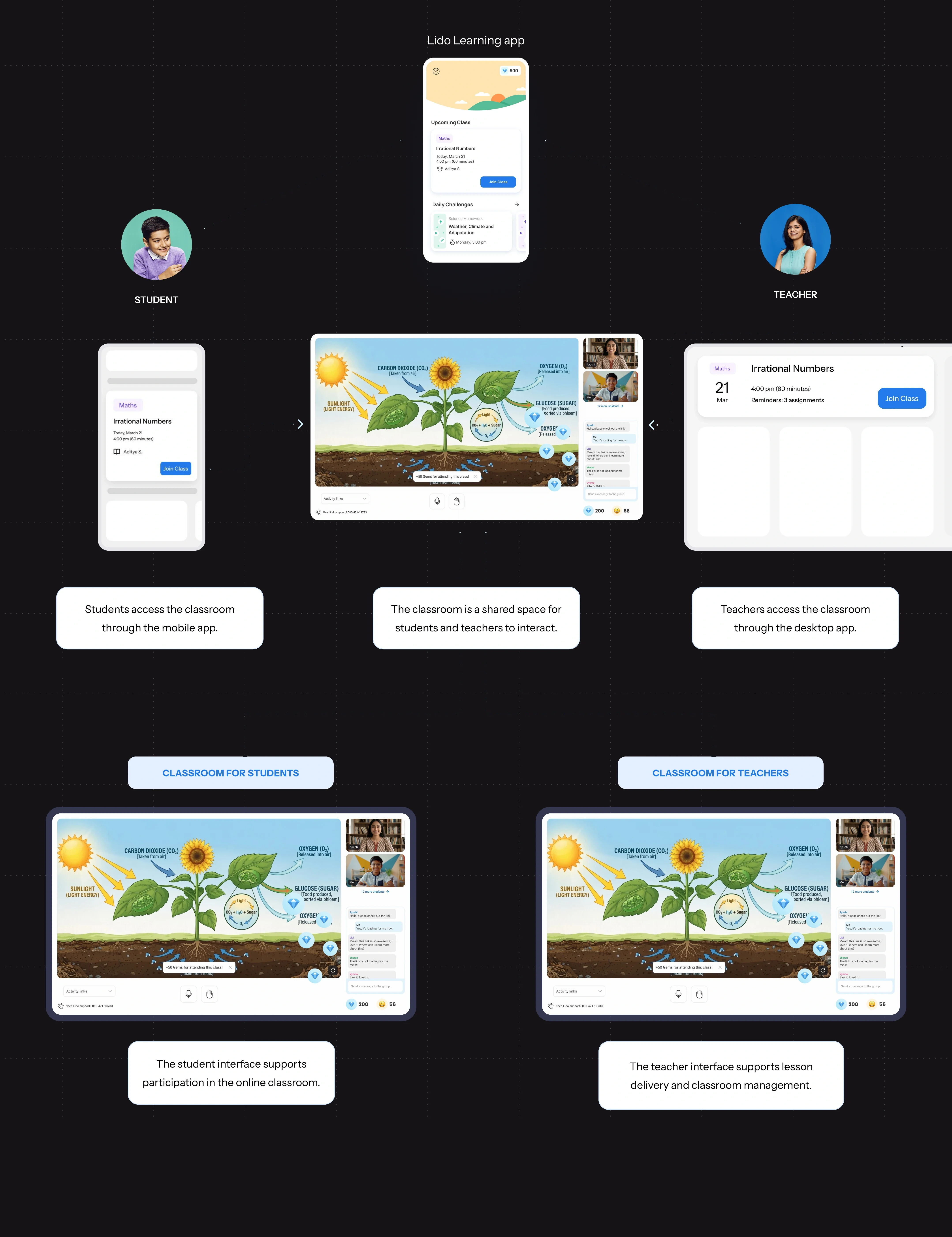
Lido Learning’s online classroom ecosystem
This diagram shows how the online classroom connects with the wider Lido Learning ecosystem.
The Lido classroom experience
A few core principles guided our design decisions and shaped the classroom experience.

- SIMPLE AND INFORMATIVE
- DELIGHTFUL
- ENGAGING
The classroom for children
The student interface was designed to support the key tasks involved in participating in an online class.
- As a student, I want to view my presentations and slides.
- As a student, I want to see my teacher and classmates.
- As a student, I want to participate in class.
- As a student, I want to see my classroom achievements.
Grids and layouts
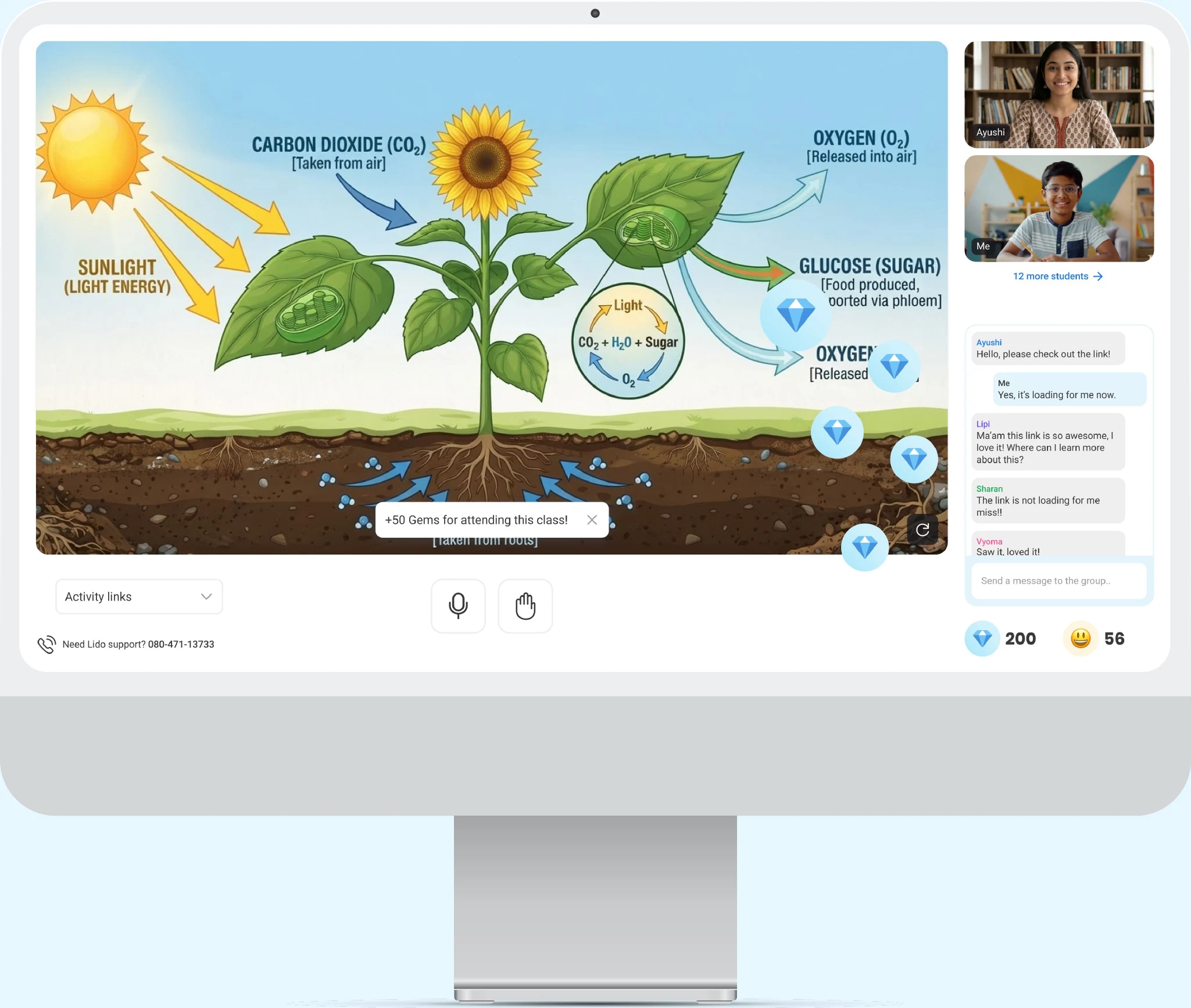
We structured content and participant video tiles to help young learners stay focused and reduce cognitive load.
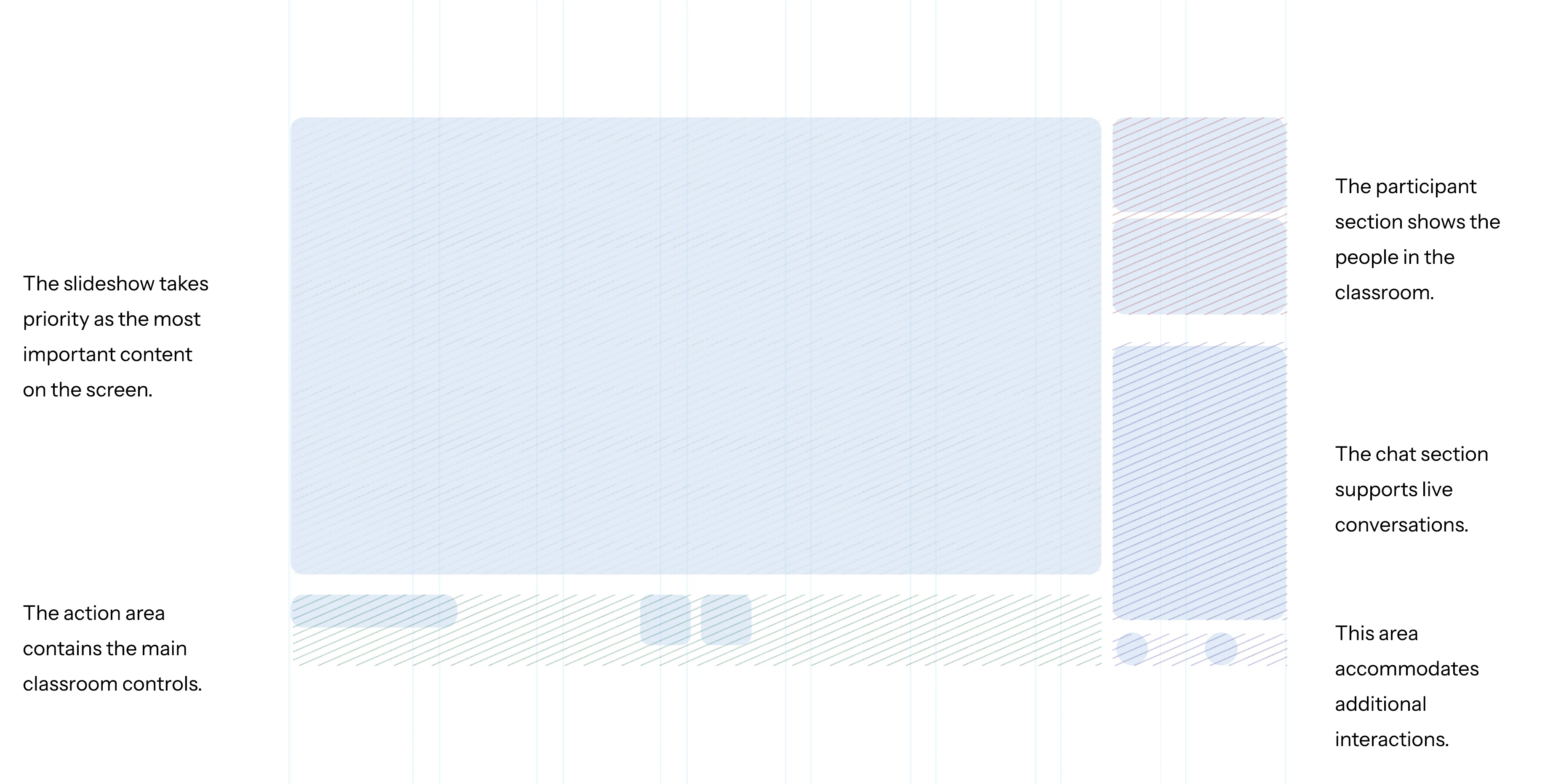
Grids and layouts
We structured content and participant video tiles to help young learners stay focused and reduce cognitive load.
Core classroom experience
The main student screen brings together the core classroom features. The annotations below explain how each feature is used.
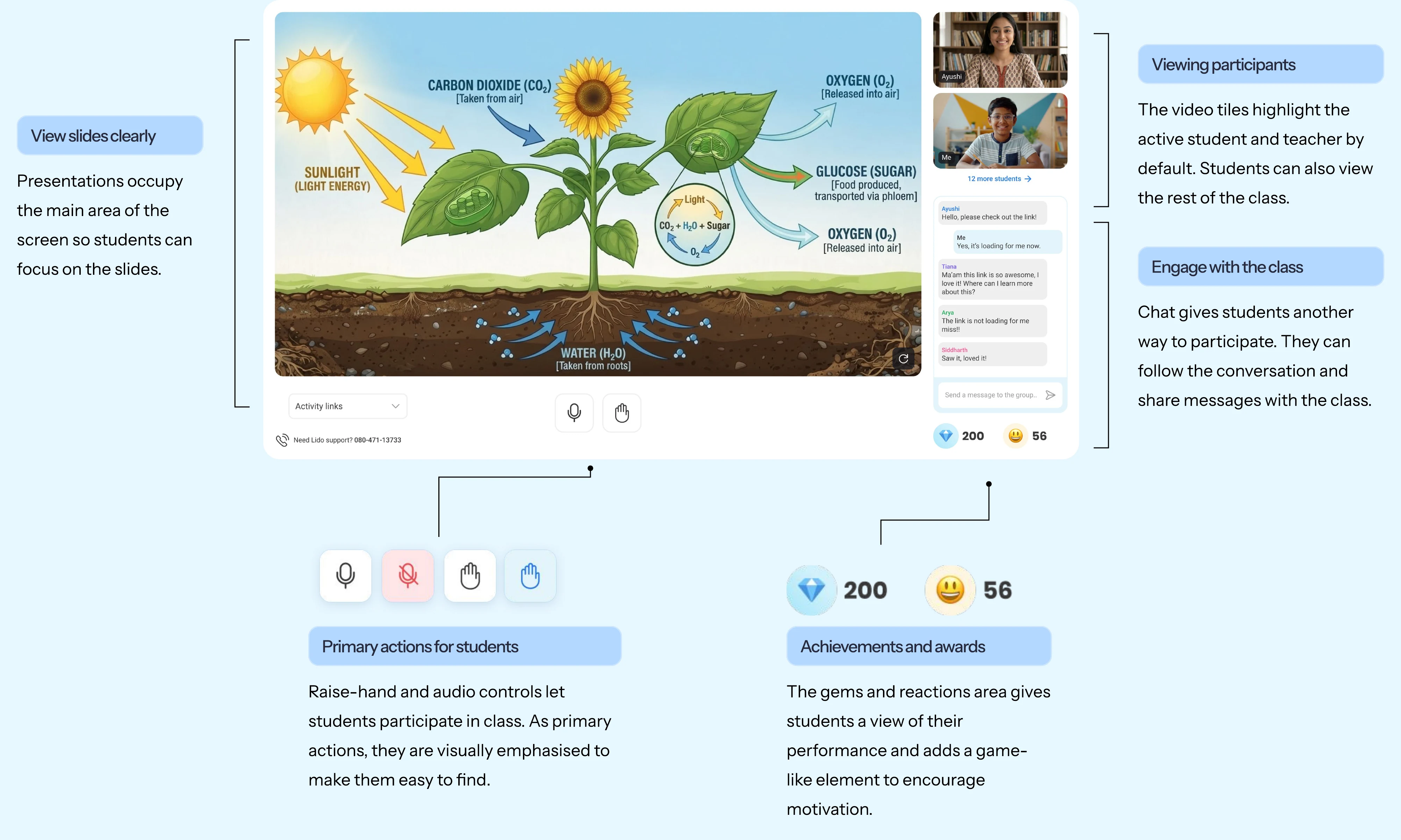
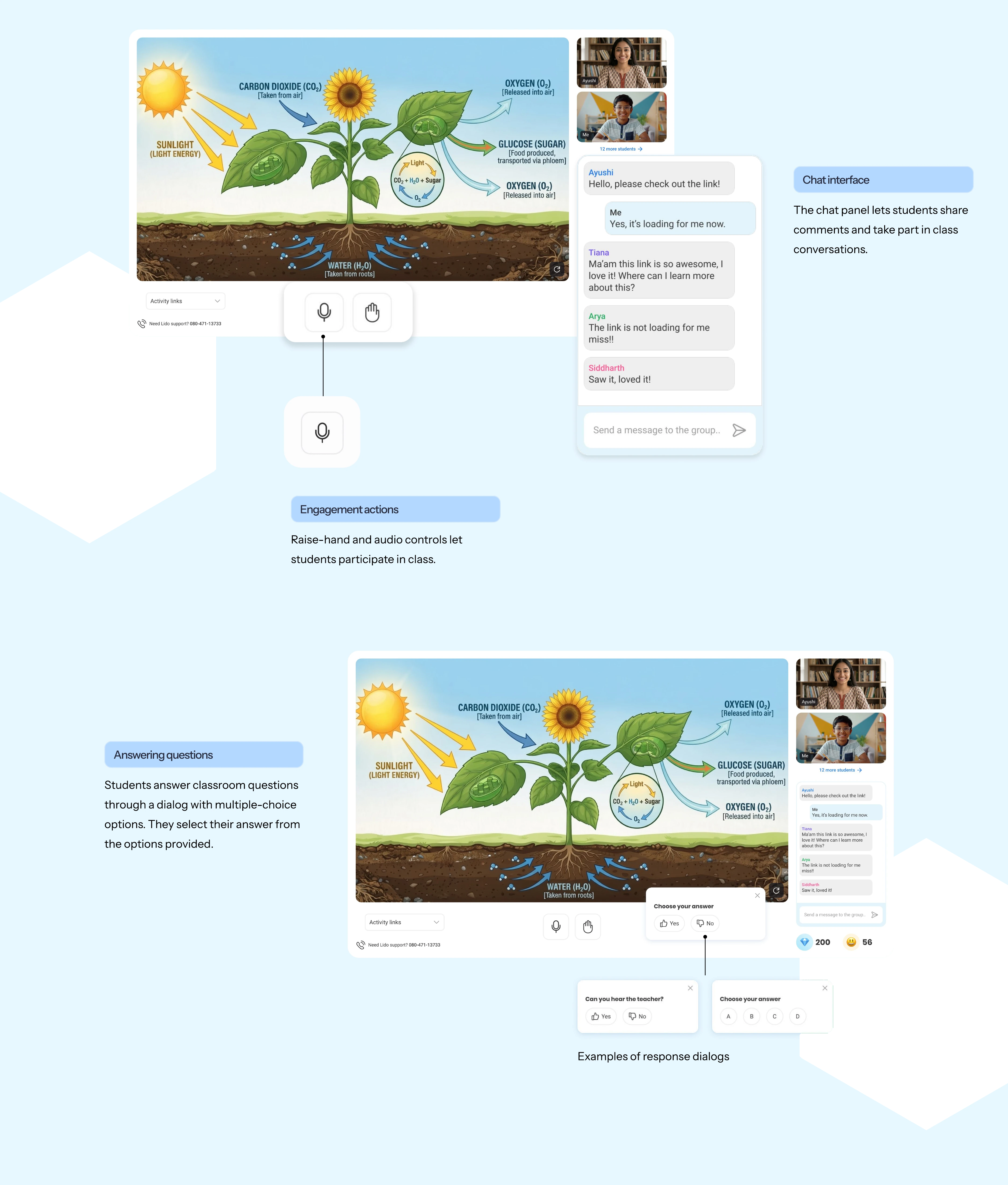
Learning through engagement
We integrated interactive elements to turn passive listening into active, hands-on participation.
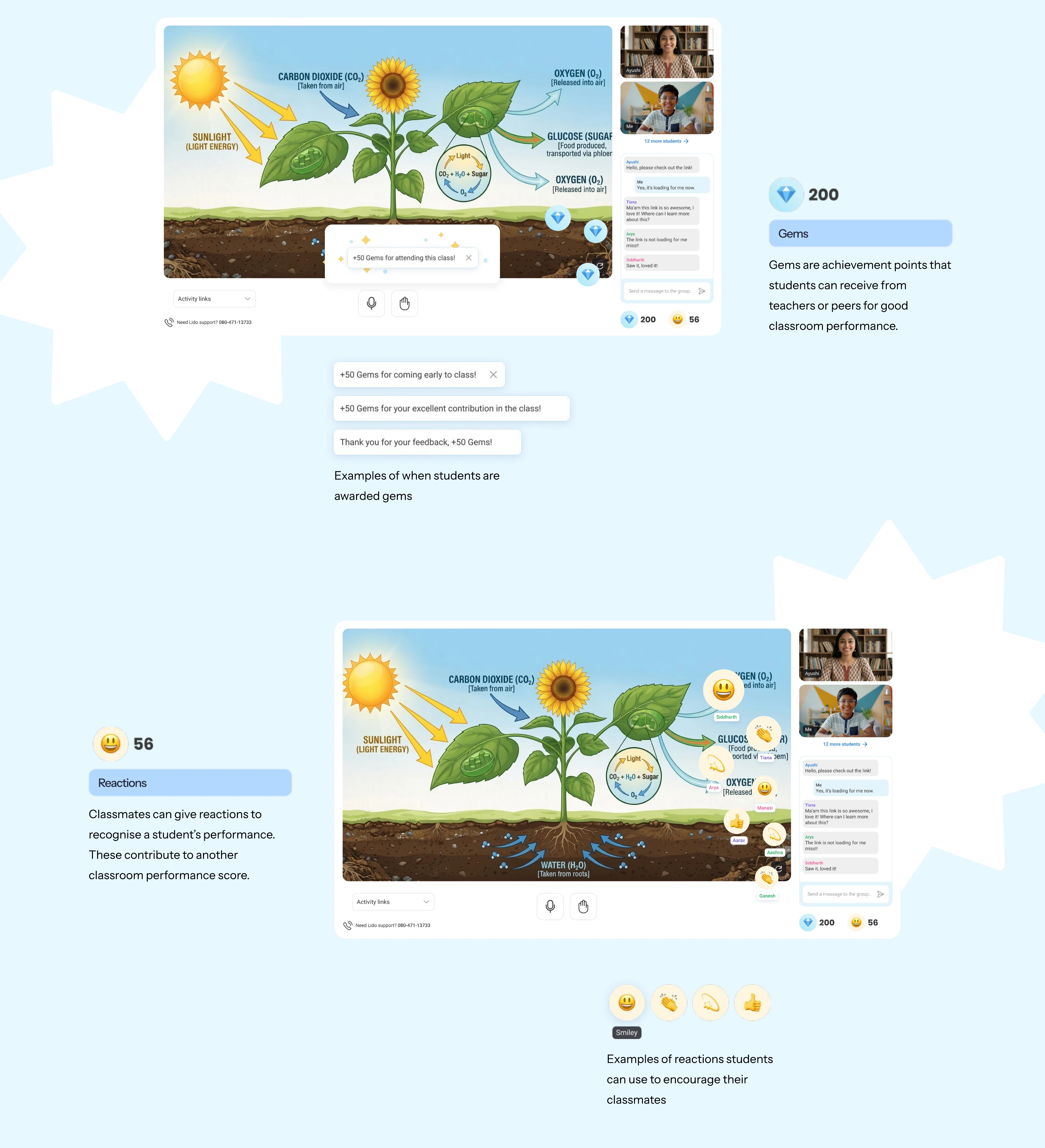
Gamifying the experience
We used rewards, badges, and feedback to encourage student motivation and enthusiasm.
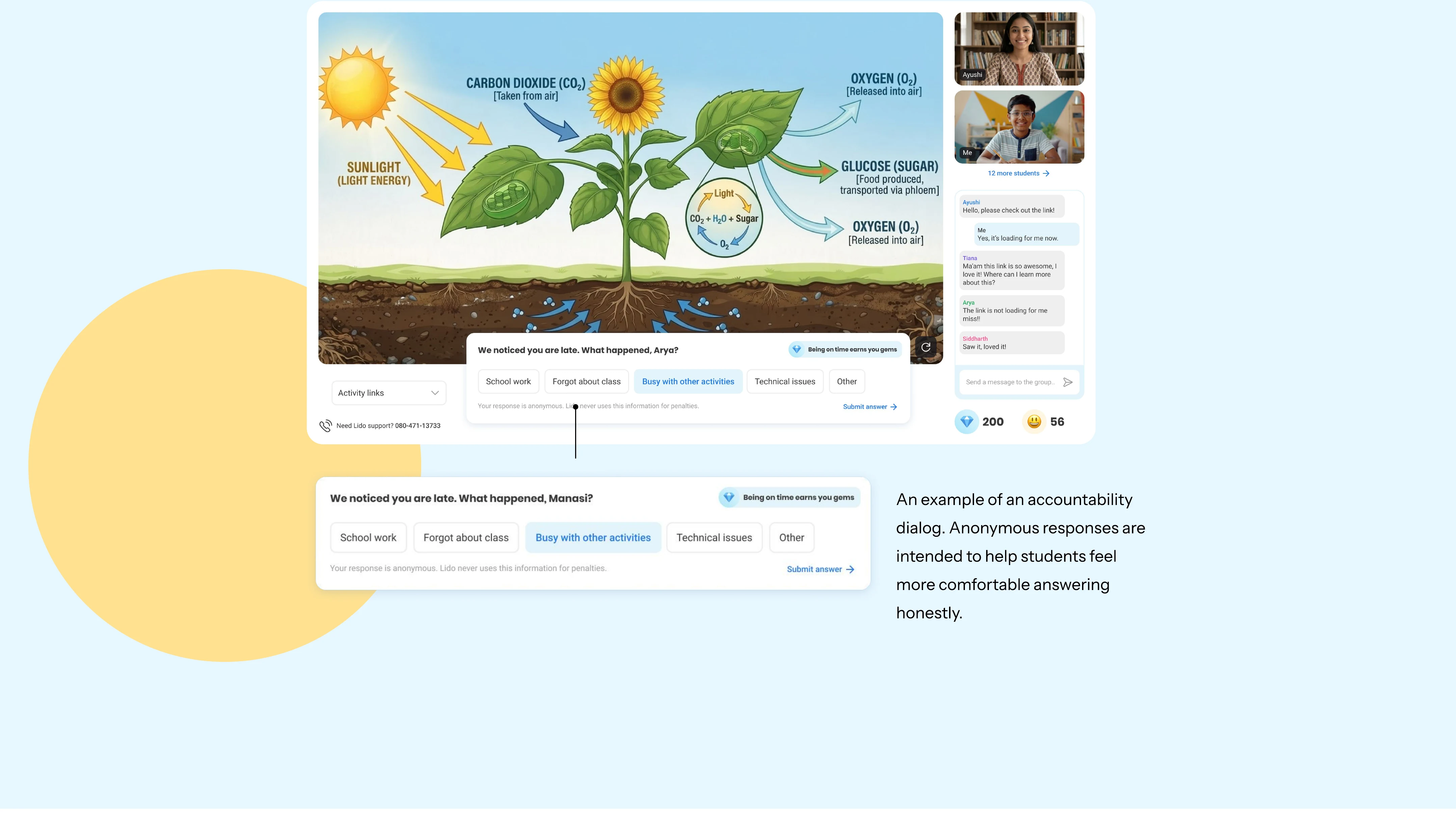
Encouraging accountability
We designed prompts to encourage accountability for arriving late and similar situations. We also highlighted opportunities to earn more gems as an incentive for punctuality and discipline.
The classroom for teachers
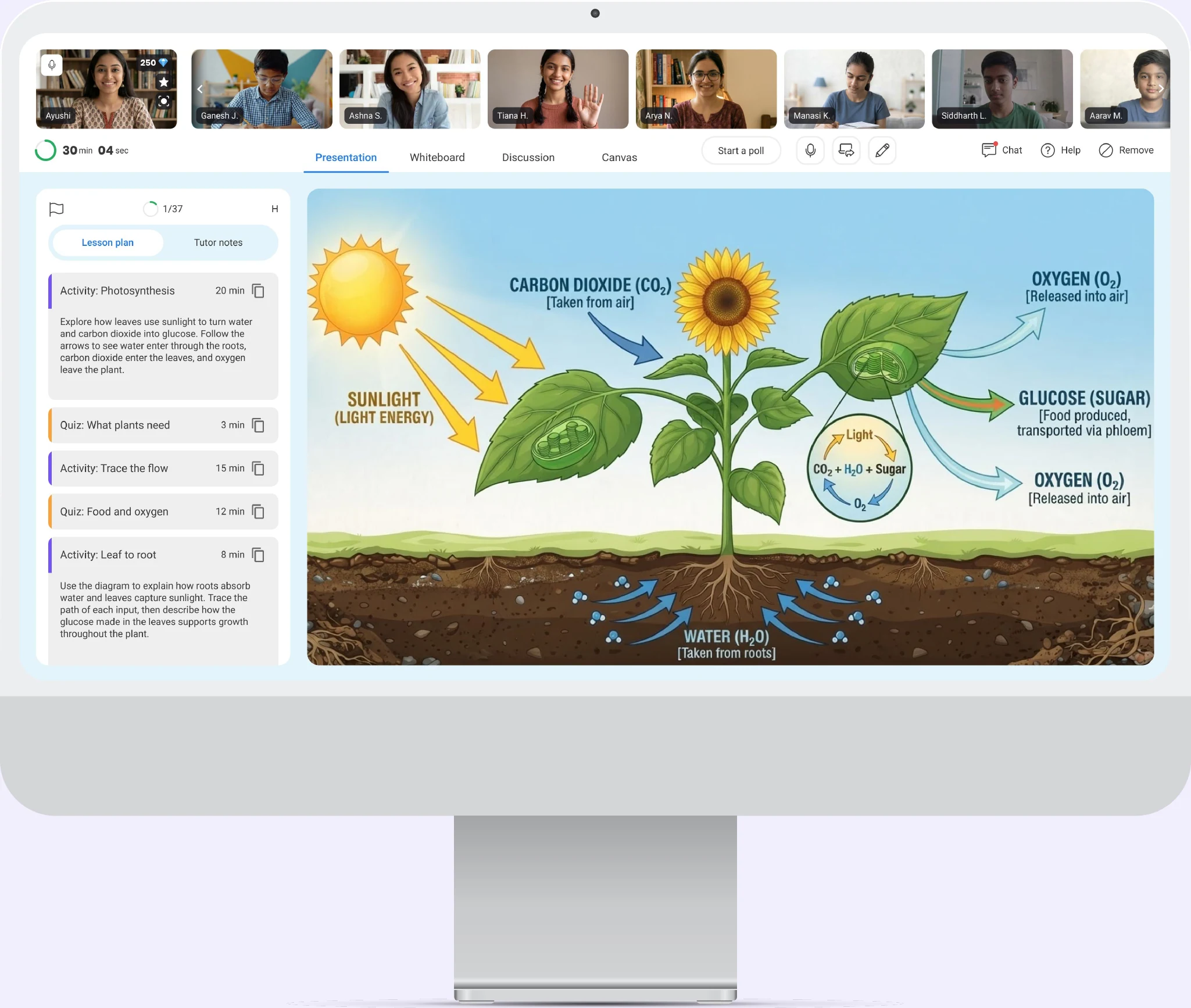
The teacher interface was designed to support the key tasks involved in delivering lessons and managing an online class.
- As a teacher, I want to view my lesson plan and tutor notes.
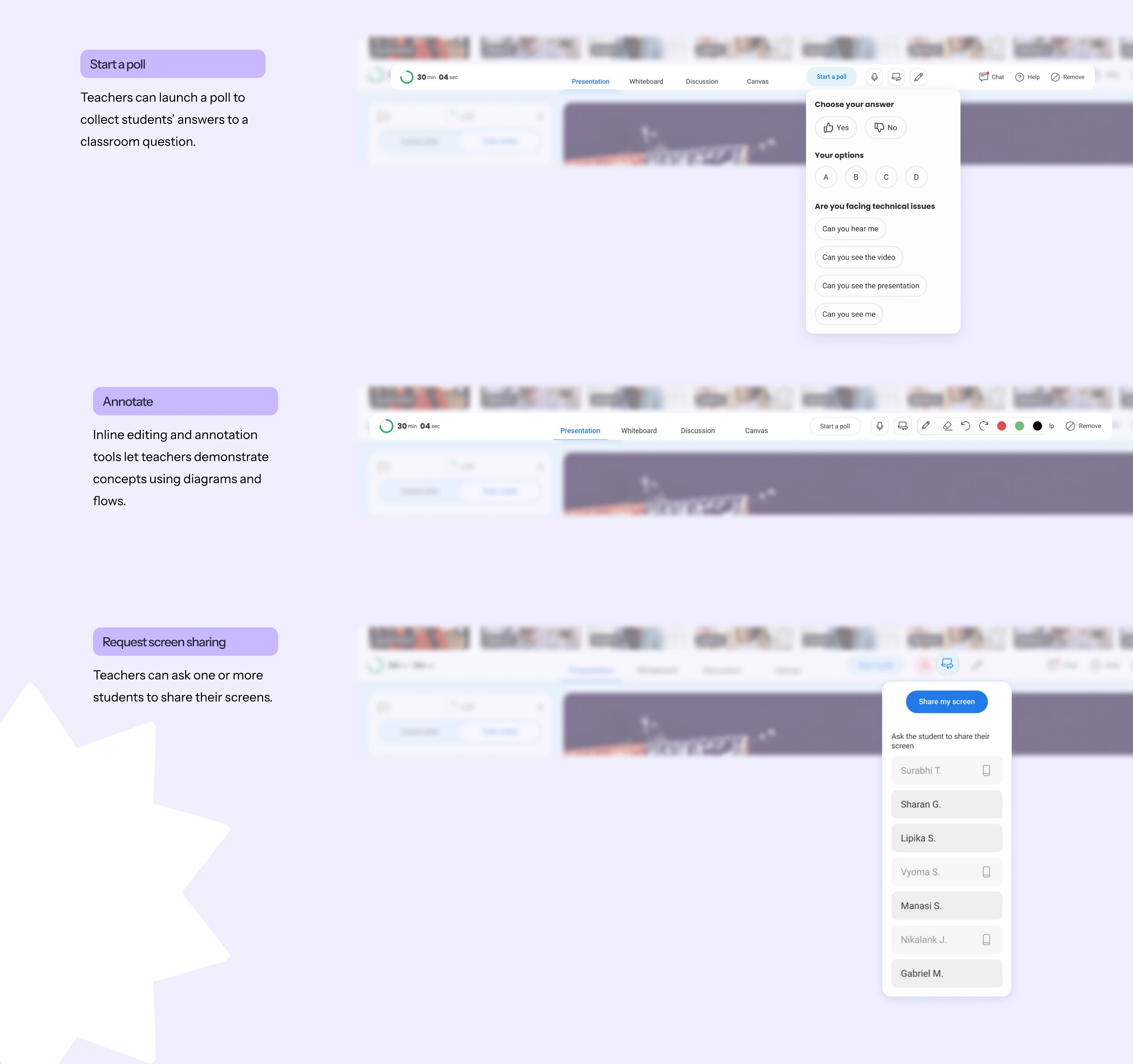
- As a teacher, I want to start polls and ask questions.
- As a teacher, I want to use annotations and diagrams to explain teaching material.
- As a teacher, I want to chat with my students during class.
- As a teacher, I want to manage participation, such as removing a student or requesting screen sharing.
Grids and layouts
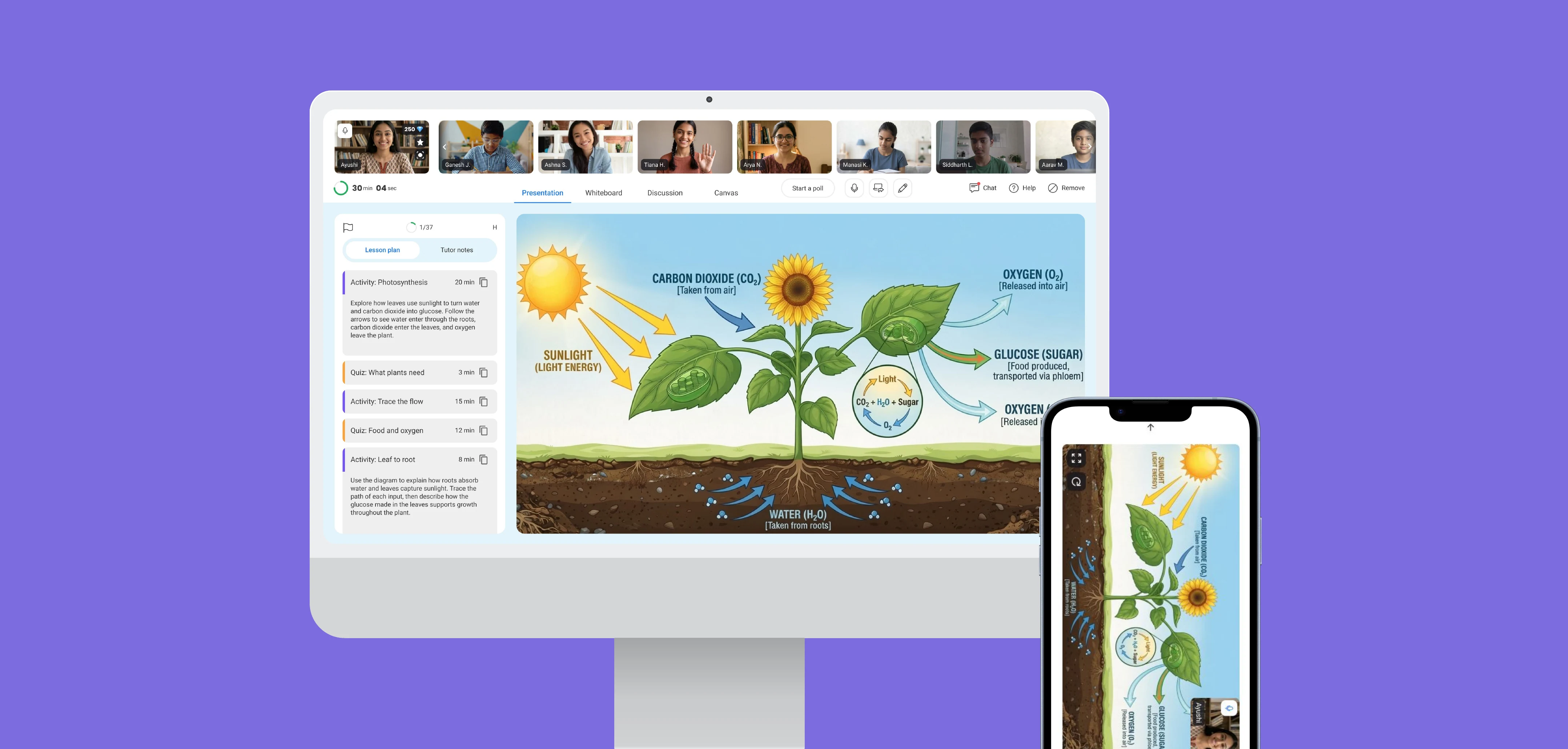
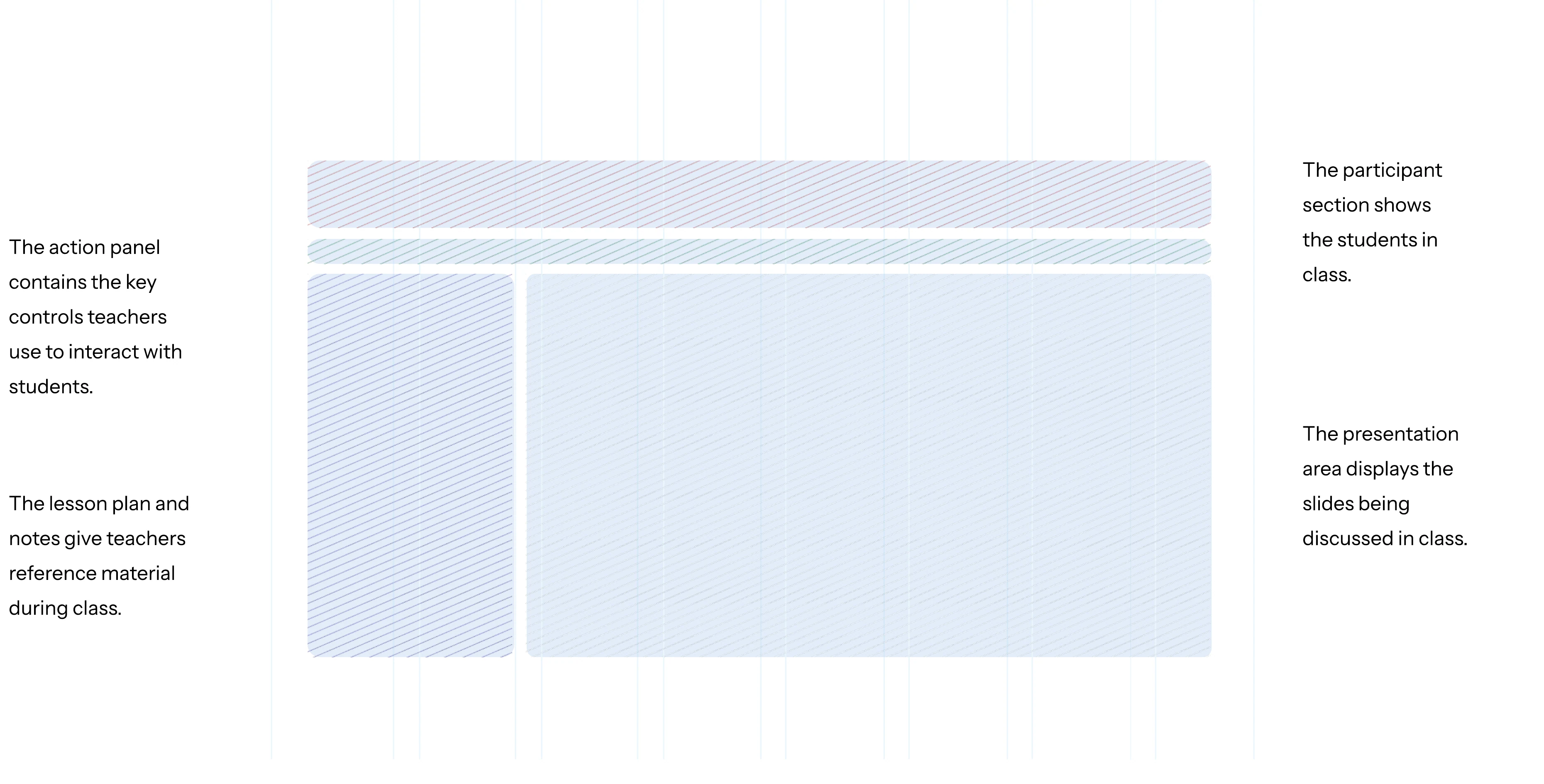
We prioritised classroom features within the available desktop screen space. The grid gave each feature a clear place, helping teachers find information and complete key tasks.
Grids and layouts
We prioritised classroom features within the available desktop screen space. The grid gave each feature a clear place, helping teachers find information and complete key tasks.
Core classroom experience
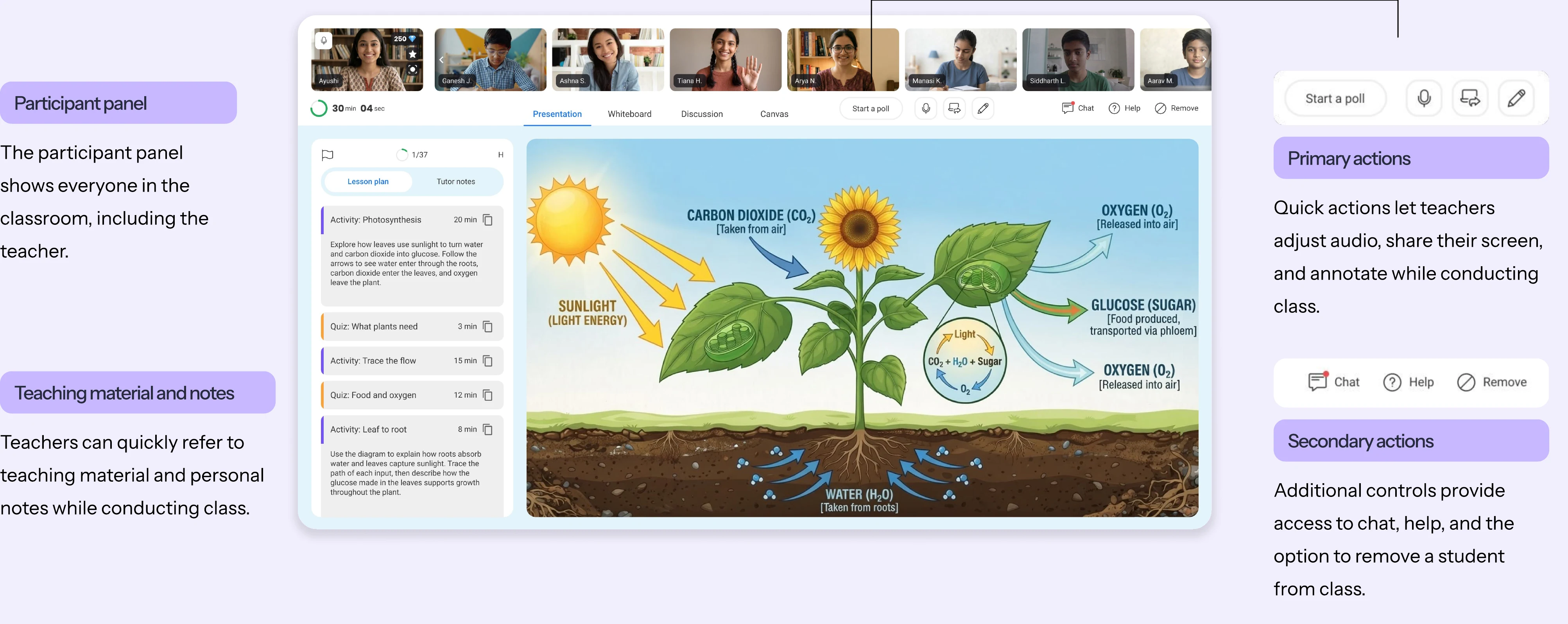
The main teacher screen brings together the core classroom features. The annotations below explain how each feature is used.
Four main modes for teachers
Four main modes for teachers


Presentation
Presentation is the default classroom mode for conducting lessons.
Whiteboard
Whiteboard mode lets teachers explain concepts through annotations, diagrams, and sketches.
Discussion
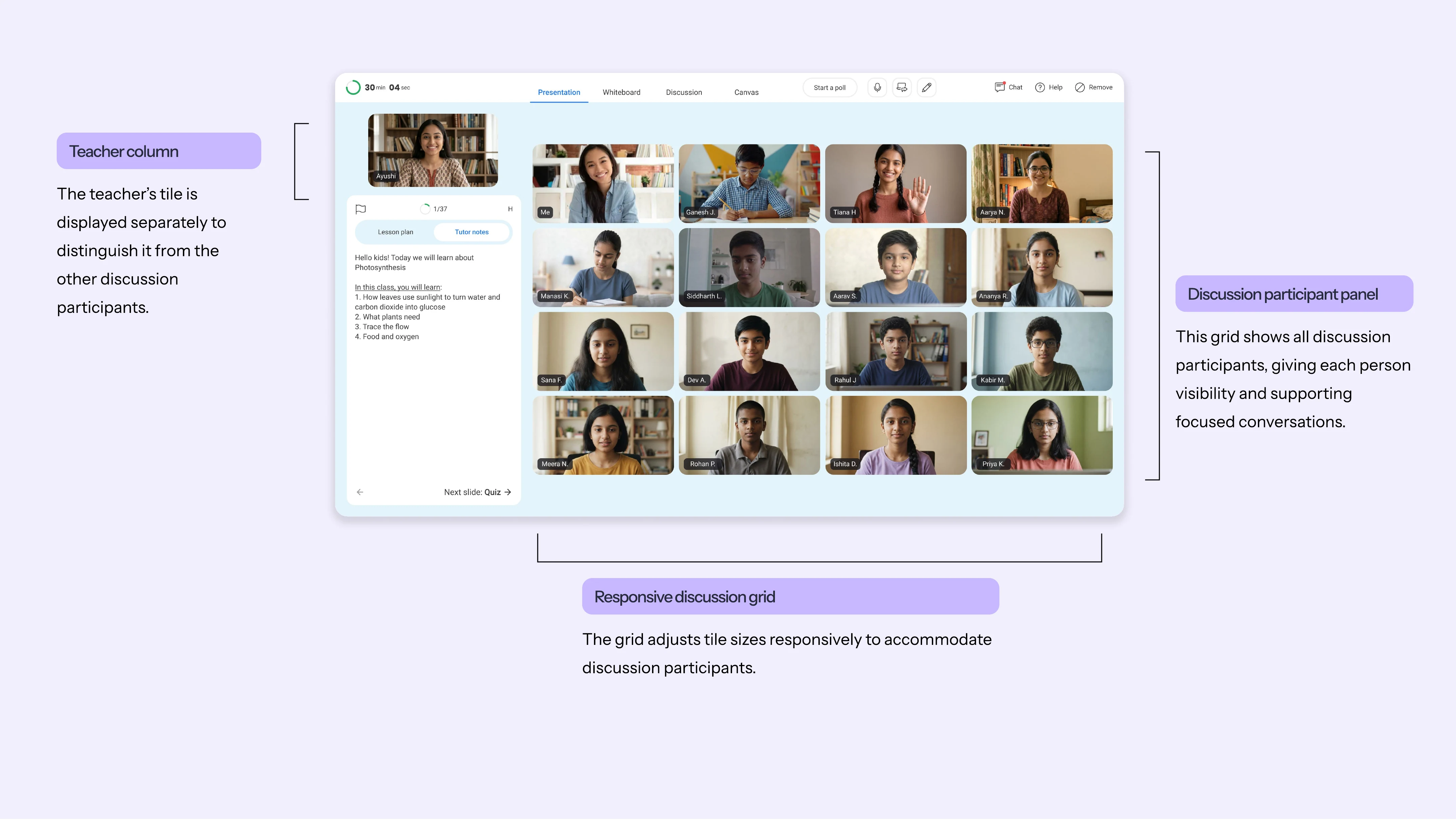
Discussion mode provides a space for active classroom conversations.
Canvas
Canvas mode lets students showcase their work and present their ideas.
A powerful, action-oriented interface
We aimed to bring the range of actions available in a physical classroom into the digital experience, helping teachers conduct lessons seamlessly.
Discussion
Discussion mode lets teachers form smaller groups for focused conversations and activities outside the regular class routine.